Security and Privacy Products I Use and (Mostly) Recommend

If you have a need for privacy and security and don’t have a cybersecurity background, trying to wade your way through all of the information and claims made by the producers of different services can be a daunting task. With that in mind, I thought I’d go over the services I personally use and why I use them.

Browsers

Almost all browsers claim to be secure and private. Unfortunately, the reality is that most of these claims are aimed at people who don’t have the time and resources to evaluate whether they are actually true. I use two browsers:

  • Firefox. Firefox is a free and open-source browser made by Mozilla. Open-source means that anyone can evaluate the code used to create the browser, as well as the claims made by Mozilla. That’s important because it means that it is very hard to make unsubstantiated claims. Also, Firefox has add-ons that can improve security and privacy even more.
  • TOR Browser. TOR is designed to be private and anonymous. It is based on Firefox and uses DuckDuckGo as the default search engine. See this post for more information about TOR.

VPN Providers

A VPN provides a secure, encrypted tunnel between the source and destination computers. When you use a VPN, your data is encrypted and your IP Address is masked. Important considerations include whether your internet use is logged by the provider, and whether they are based in an area susceptible to law-enforcement warrants. VPNs are one service where I don’t usually recommend the free services (unless you are proficient enough to set up OpenVPN on an AWS server. I’ve done it and it isn’t that easy). There are a lot of “free” VPN services, but nothing is really free. The risk is that they sell your data to fund their business or shower you with ads. My choices:

  • NordVPN. A paid VPN service based in Panama (no mandatory data retention laws) that provides a fast, secure, reliable product.
  • ProtonVPN. From the people who brought us Protonmail (my choice for secure email). They have a free tier, but I recommend the paid version.

Email Providers

I used to consider email to generally be something you only used if you really didn’t care who saw it. With the advent of Transport Layer Security (TLS), it is possible to have end-to-end (E2E) encrypted email. Gmail now uses this by default. Unfortunately, Google stores all of your data on their servers. I use Gmail for most accounts, but for anything sensitive I recommend:

  • Protonmail. Based in Switzerland, where there are strict privacy laws. Anything you save is stored encrypted on their servers in an underground vault. Protonmail is open source and uses AES-256 symmetric encryption, RSA public-key cryptography, and TLS. See this post for more information on encryption standards.
  • Tutanota. Another encrypted email product that provides E2E encryption and has the advantage of requiring little to no personal information to open an account.

Private Messaging and Calling

This is an area where there is a lot of misinformation. Are your chats and calls actually E2E encrypted? Is your information given to third parties? WhatsApp, for example, is a Facebook company. Take that as you will. I recommend:

  • Signal. A truly E2E encrypted, decentralized messaging and calling service. The only service endorsed for use by European intelligence services and endorsed by Edward Snowden. It’s really the only service I trust. The only downside is that you do have to provide a real cell number.
  • Telegram. Sort of a hybrid social media and chat service. It has recently been in the news because it has been widely used by Ukrainians seeking a safe means to communicate and get news. I like Telegram, but messaging is not E2E encrypted by default. You can select a secret chat that is, though.

Password Storage

At this point, there is really no excuse to use weak passwords. If you use short, easily-memorable passwords, you are simply not secure. I generally use randomly generated, 14 + character passwords that are a combination of upper-case letters, lower-case letters, numbers, and symbols. The problem is that these passwords are virtually impossible to remember. A password vault allows you to generate, store, and usually auto fill passwords. My recommendations are:

  • Bitwarden. A secure, free, and open-source password manager that works on Windows, Linux, MacOS, Android, and IOS. I really like the add-on browser extensions for Firefox and Chrome. I think it’s the easiest to use.
  • KeePass. This is more advanced. With Keepass, passwords are only stored locally (i.e on your computer), encrypted, in a file. They are accessed with an ideally long passphrase. I use KeePass for passwords that are so sensitive that I don’t even want them on Bitwarden.

Disk and File Encryption

I have only one recommendation here, and that’s Veracrypt. Veracrypt is free and open-source encryption software for Windows, MacOS, and Linux that allows you to encrypt files, folders, or even whole disks. There are other encryption solutions: I’ve used File Vault on Mac and BitLocker, which is a proprietary Windows program available on the Pro versions, but if it matters, I use Veracrypt.

Sources

Twitter and Facebook Have .onion Sites to Help Bypass State Censorship

  • Both Russia and China have blocked access to certain social media sites in an attempt to keep their citizens from having access to news and information sources outside of state control.
  • Russia in particular has instituted draconian censorship of news sources and surveillance of its own citizens since the invasion of Ukraine.
  • Accessing .onion sites using the Tor Browser is a way of bypassing state censorship and surveillance.

The Tor Browser

If you ask the average person about the Tor Browser, it tends to conjure images of criminals in hoodies purveying and accessing illegal services on the Dark Web (i.e. the Silk Road). But what actually is Tor, and does it have legitimate uses?

Tor, or The Onion Router, was created by researchers at the Naval Research Lab (NRL) in 1995 as a means of preventing monitoring of private communications on the web. Later work by MIT researchers and the Electronic Frontier Foundation (EFF) led to the creation of a nonprofit called The Tor Project.

When a person uses the Tor Browser, traffic is routed through input, intermediate, and output nodes located in different geographic locations. This effectively masks the IP address and identity of the user. Traffic between nodes is encrypted. Tor users generally access sites using .onion addresses. For extra security, the user should encrypt sensitive data because it is not encrypted by default after leaving the exit node.
Tor as a tool to avoid censorship

Because of the design of the Tor network, it is a good tool for avoiding state censorship. Because data can be end-to-end encrypted and IP addresses masked, a careful user can effectively bypass censorship. There are pitfalls that need to be avoided, though. Because an internet service provider (ISP), and most likely state intelligence agencies, can determine that someone is using Tor, (even if they can’t tell what they are doing), The TOR Project recommends that users needing to bypass state censorship use a bridge to obfuscate the connection to the Tor network . Also, I personally recommend not changing Tor default settings unless you really know what you are doing. See https://torproject.org/ for more information and recommendations.

Twitter and Facebook offer .onion sites

Traditionally, a lot of websites have blocked access via the Tor network. In light of the recent actions of the Russian government to block access to news sources and control the media, Twitter and Facebook (as well as the BBC and other news and information sites) now offer .onion sites, allowing people trapped behind these media blackouts access to information from the outside world. I recommend, though, that users do a little research to be sure their activities are truly obfuscated (and that they remain that way). The following are some recommendations to consider:

  • Don’t change the default setting of the Tor browser under most circumstances.
  • Access the Tor network using either a virtual machine (like Whonix) or using a live operating system that does not save any history after shutdown. Tails is probably the best choice, Kodachi Linux would be another. They can be booted from a USB stick or CD.
  • If you have to download and/or print files, you should save them to a USB drive and do it from a different computer not linked to the internet.
  • Consider using VPN over Tor, as long as you use a VPN that doesn’t keep logs and ideally one that allows anonymous payment via Bitcoin (Remember that just using Bitcoin does NOT make you anonymous, but how to make anonymous payments with Bitcoin is beyond the scope of this article).

Sources and More Information

A Backpack Penetration Testing Setup Using Raspberry Pi and Kali Linux

The Idea

The other day, I came across this article on hackernoon.com, and I was fascinated by the part about using a Raspberry Pi to run Kali Linux from inside my backpack. So, I decided to see if I could set it up for myself.

Necessary Equipment

I used the following for the setup:

  • Laptop running Windows 11, PuTTY downloaded for SSH connection
  • Rufus for Windows
  • Raspberry Pi 4 from Amazon.com. I used this kit, but you can just use the board as well to save money
  • MicroSD card
  • Card Reader (I used the one that came in the Raspberry Pi kit)
  • Kali Linux ARM Image
  • Anker portable USB charger
  • USB-A to USB-C cable to attach the power supply
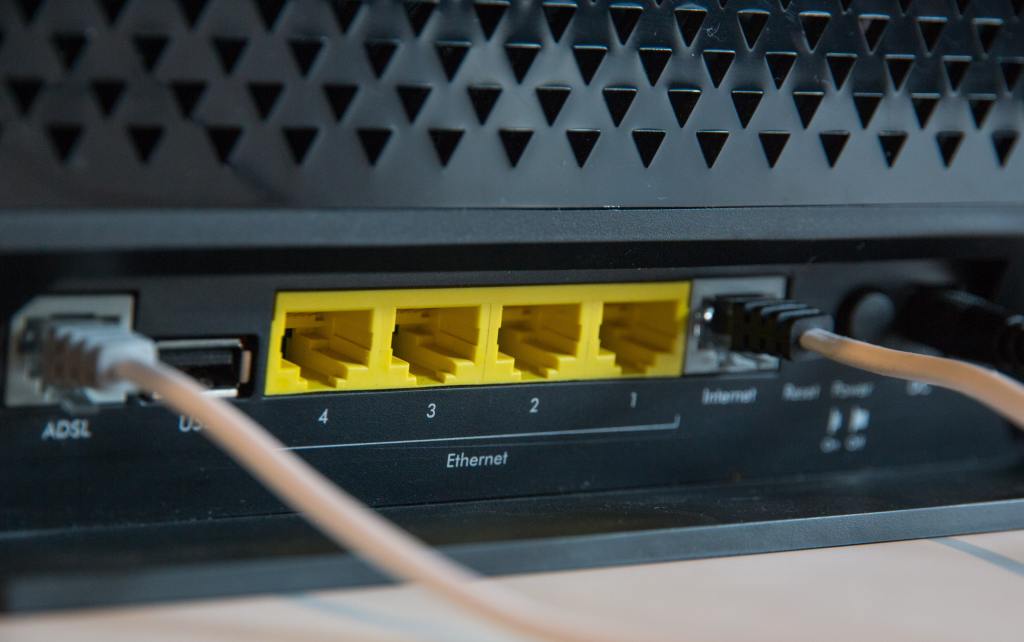
  • Short Ethernet Cable
  • Ideally, a portable power block that could run both laptop and Raspberry Pi (I didn’t want to buy one)

Loading Kali Onto The Raspberry Pi

Kali Linux ix available in an ARM that is suitable for Raspberry Pi. It can be downloaded at https://kali.org/get-kali/. Once you’ve downloaded the image, put a new MicroSD card into the reader and plug the reader into the USB port of the Windows computer:

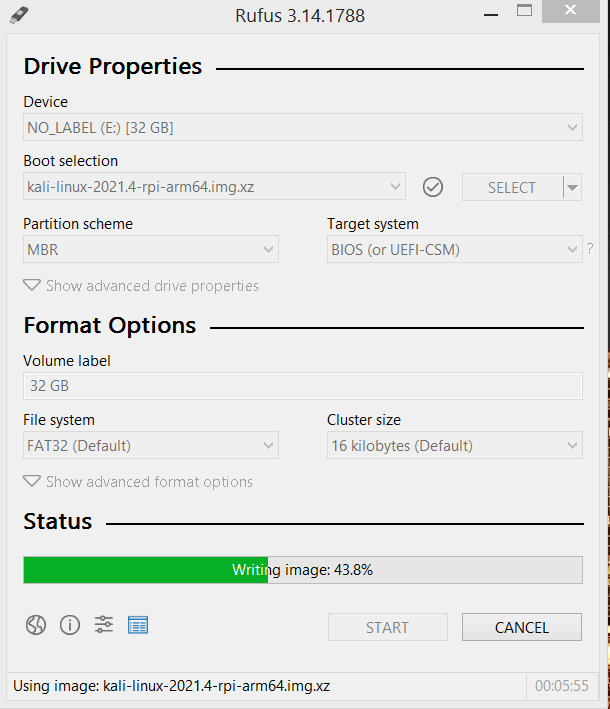
Next, open Rufus as administrator and select the card and the ARM image. Click start and let the image load. When finished, eject the card and put it into the Raspberry Pi. This needs to be done with the Raspberry Pi still connected to a monitor, mouse, and keyboard, as further configuration will be needed.

Start up the Raspberry Pi. You should see the following screen as Kali loads:

Raspberry Pi Setup

The most challenging part of this project was getting the Pi setup so that I could SSH into it from my laptop. There are several steps that need to be taken. First, update Kali using the command line:

sudo apt-get update

Next, download open-ssh server:

sudo apt-get install -y openssh-server

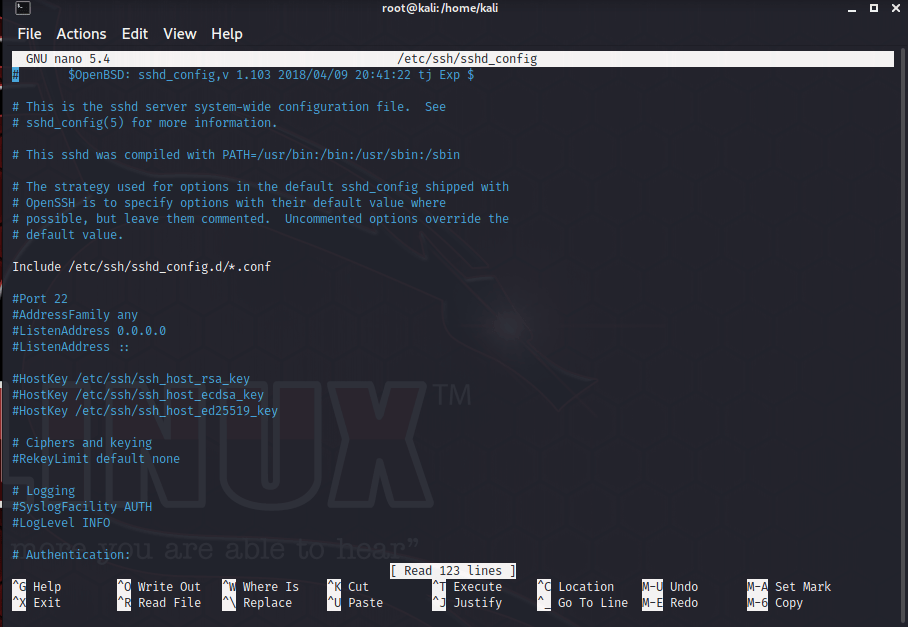
Now, we have to make a change to the openssh config file:

sudo nano /etc/ssh/sshd_config

Although I found several recommendations for config changes, the only changes I made were to uncomment (delete the #) “PermitRootLogin” and “PasswordAuthentication yes.” I did this to keep the ssh process simple. I did change the root password on Kali with the following command (done as root user):

passwd root

Now, restart the ssh service with

sudo service ssh restart

I also wanted to be sure that the ssh server is enabled at startup, so I used the following commands:

sudo systemctl start ssh

sudo systemctl enable ssh

Now, be sure to run ifconfig on Kali to get the IP address so you can access it via ssh. Keep in mind that this is only to test the connection. In real life, you might not know the IP address on Kali, so you’ll need to use nmap to scan the network, or possibly a network analyzer app.

One final note before moving on: if you want to have a secure ssh connection, you will need to change the default ssh keys and do some reconfiguring of the server. This link will show you how to configure this.

SSH Into Kali Using PuTTY

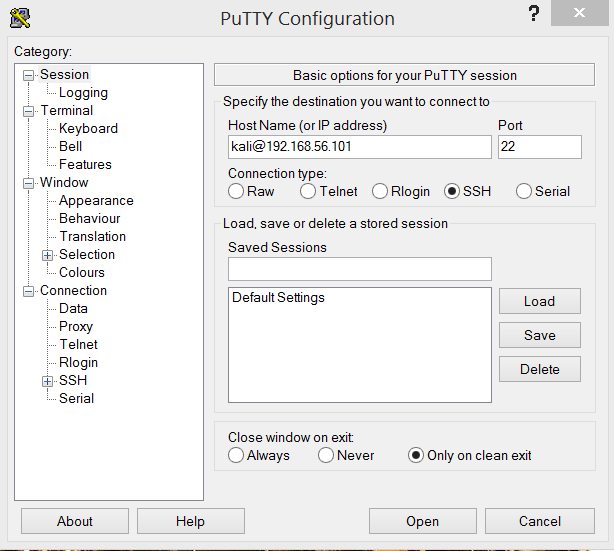
Now, you can disconnect all the peripherals from the Pi and attach the portable charger. The Anker charger worked flawlessly for this project. Attach the network cable to the Pi and the laptop. Once the Pi is powered up, you should be able to ssh into it from PuTTY on the laptop:

Follow the prompts and enter the new password you generated. If you want a GUI, you could use RDP as well. Just open your start menu and type “remote desktop connection,” and open the app:

Keep in mind, though, if the objective is to be stealthy, having Kali open on your laptop might seem obvious…

Sources:

Cracking WPA/WPA2

Disclaimer: This is an exercise designed to teach security principles. It was performed in a secure lab environment. Using these techniques on a network without permission can get you in legal trouble!

Introduction

For about the past month, I’ve been studying for the CompTIA Pentest+ certification. This is primarily a theory-based certification, but the study material has many practical exercises used to reinforce the material. Cracking WPA/WPA2 was the most fun and interesting exercise. It’s also not especially difficult, so is a good beginner activity.

Wi-Fi Security Standards

Modern wireless devices can use a number of security standards for authentication. I’m not including “open” in this list, because setting your device to open leaves your network completely unsecured. The following is a list of available standards

  • WEP or Wired Equivalent Privacy. Trivial to hack and shouldn’t be used
  • WPA or Wi-fi protected Access. An improvement over WEP. Uses a preshared key (WPA-PSK)
  • WPA2 added CCMP (Counter Mode Block Chaining Message Authentication Code Protocol) which uses AES. (See this previous post about Encryption).
  • WPA Enterprise uses RADIUS to give each user a unique ID.

When I setup a home network, I set the router to WPA2 by default. There is a WPA3 available now, but it isn’t widely used yet.

Exercise Setup

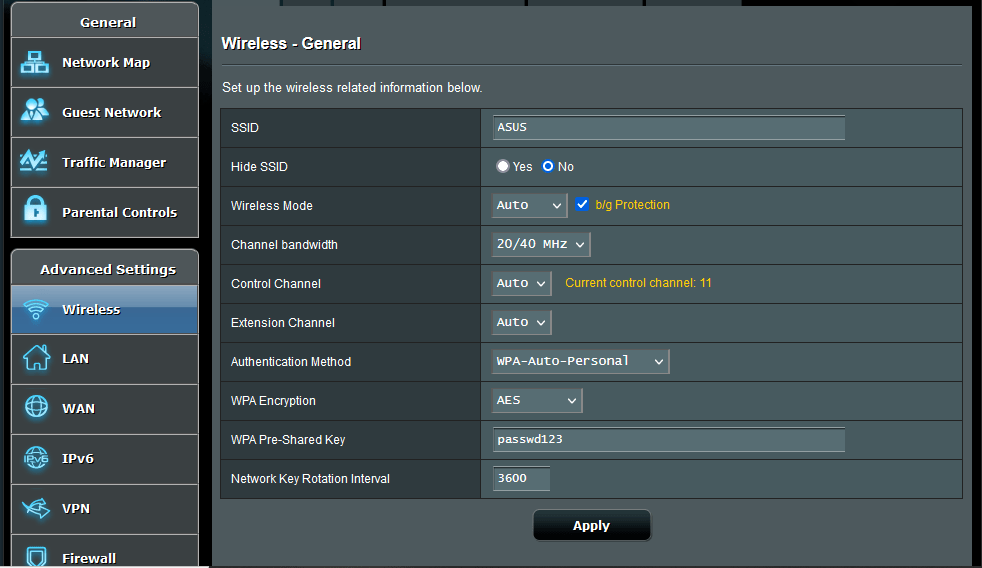
For this exercise, I used two laptops and an ASUS N300 Wi-Fi Router, which was inexpensive on Amazon. The first laptop was running Windows 10 Pro, and was the target. The second Laptop was running Kali Linux on Virtualbox. Ubuntu 20.04 was the host OS, and Kali was set up to use a USB attached Alfa AWUS036NHA long-range wifi adaptor. Setting up Kali in Virtualbox to work with the wireless adaptor can be a little tricky. Here is a link to a YouTube video run through of the process. I initially attached the router to the Windows laptop with a network cable, configured the router to use WPA, and set a simple password (passwd123):

I then unplugged the network cable and logged on to the router wirelessly, opened a command prompt on the Windows laptop and set it to continuously ping an imaginary IP Address using the following command:

ping -t 192.168.1.230

Cracking WPA

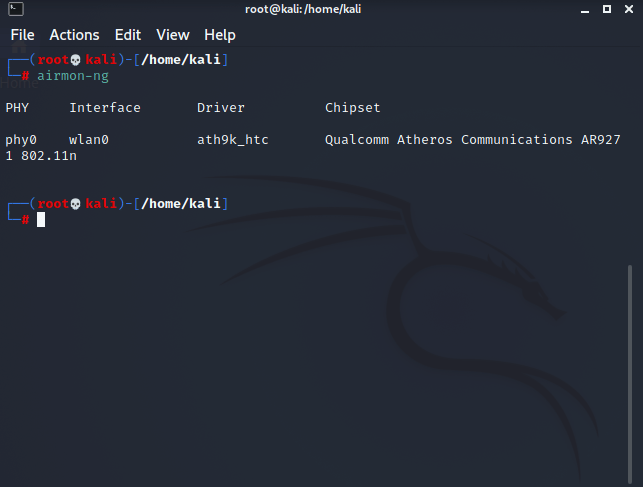
WPA cracking is done using the aircrack-ng suite, which comes preloaded on Kali. The initial step is to list the available wireless networks using the command

airmon-ng

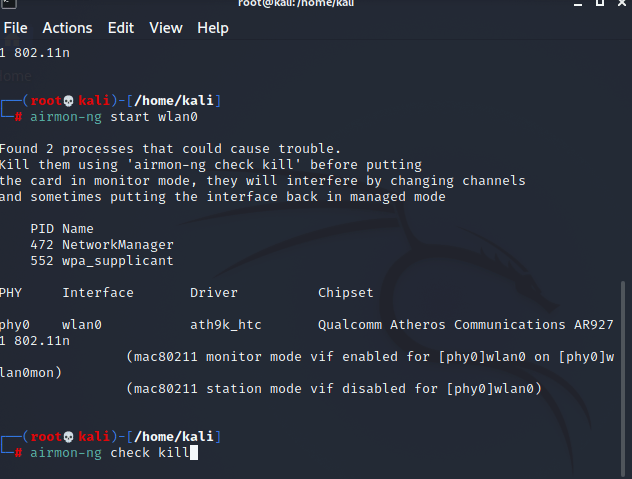
Next, the wireless interface has to be in set to monitor mode using

airmon-ng start wlan0

You will be asked to run “check kill” to stop processes that can cause issues:

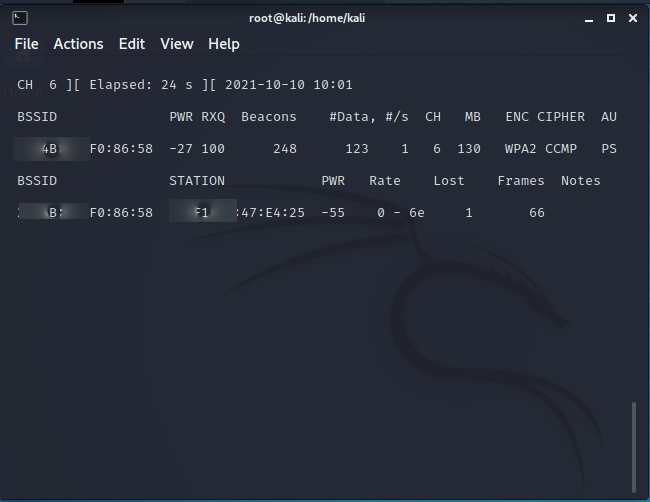
Now find the the BSSID and channel for you the network using the command

airodum-ng wlan0mon

You will get an output like this:

You will need both the BSSID and the channel for the next part of the exercise. Press Control C to exit. Now, we can use airodump-ng to capture the authentication handshake:

airodump-ng -c 6 –bssid <target MAC Address> -w <outfile> wlan0mon

giving:

This requires a client to deauthenticate from the network. For this exercise, I forced the issue using

airplay-ng -0 1 -a <BSSID MAC Address> -c <Target MAC Address> wlan0mon

Switching back to airodump, we can see that we have captured the handshake:

Getting The Password

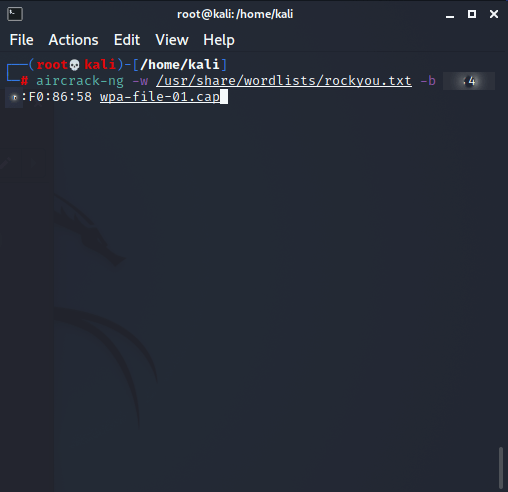
At this point, we have captured the handshake and it is saved in the file wpa-file-01.cap. Now, we can use aircrack-ng run a wordlist against the file and see if we can obtain the password. In Kali, wordlists are found in /usr/share/wordlists. I first attempted this using the wordlist rockyou.txt, as the pentest+ exercise suggested:

aircrack-ng -w /usr/share/wordlists/rockyou.txt -b <Target MAC Address> wpa-file-01.cap

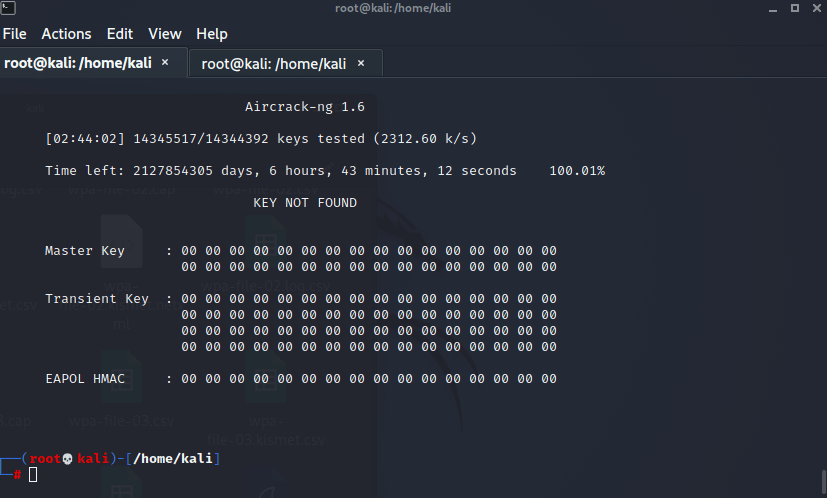
Unfortunately, after 1 1/2 hours, I got the following output:

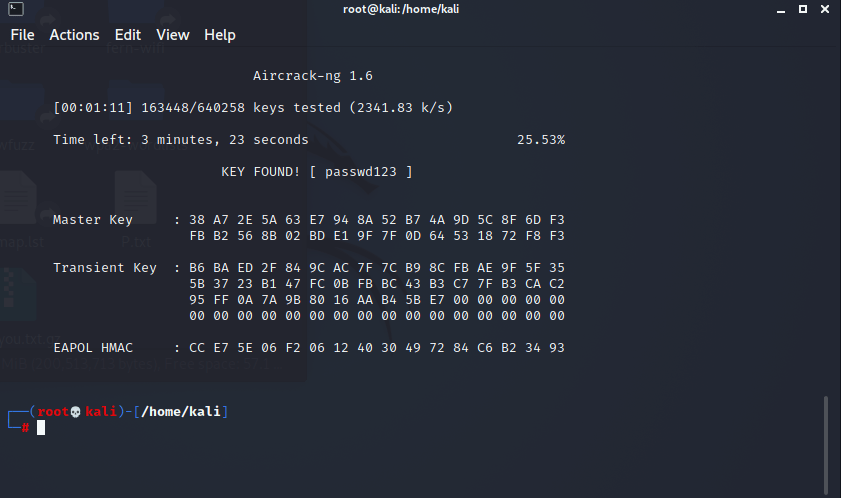
My suspicion was that this occurred because I chose passwd123 instead of password123. So, I googled Kali wordlists and found one that I thought might work. I ran is and got the password (this was a bit of a cheat since I knew the password and was able to choose a wordlist that let me run by letters of the alphabet, but it worked for demo purposes):

Conclusions

As you can see, this is a very doable exercise for a beginner to intermediate level student. As you can also obviously see, weak passwords are a major security flaw! In general, I autogenerate 15 character random passwords using a password generator, avoiding using common words, names, etc.

Sources

  • Nutting, Ray. CompTIA Pentest+ Certification. McGraw Hill Education, 2019
  • Chapple, Mike and Seidl, David. CompTIA Security+ Study Guide. Sybex, 2021
  • The GNU Image Manipulation Program was used to edit photos.

Linux Host Firewalls

Overview Of Firewalls

A firewall is a protective control that prevents systems on one side of the firewall from reaching a network or host on the other side. Host firewalls are application based as opposed to network based (firewalls can also be hardware or software based). Most of the time, you will think of firewalls as blocking packets from entering your system from the outside, although a firewall can also:

  • Block packets from leaving
  • Forward packets
  • Port forward
  • Change packets (mangling)
  • Allow access of multiple network devices to the internet

Firewalls can be classified as follows:

  1. Packet Filtering. Filters traffic based on source or destination IP address/ port number as well as by protocol (OSI layers 3 and 4)
  2. Stateful Packet Inspection. Can do what a simple packet filtering firewall does, but can also filter traffic based on context. So, a packet is accepted or rejected based on whether is meets the criteria for the current conversation.
  3. Application Layer. Operates at OSI layer 7 to prevent application access into or out of the system.

Remember, a firewall uses RULES to decide what gets through and what doesn’t get through.

Netfilter/IPTables

In a linux distribution, IPTables is the utility that is used to configure packet-filtering rules at the kernel level. Netfilter is the actual firewall that IPTables manages. IPTables gets its name from the tables that determine firewall functions. There are four basic tables:

  • Filter for the filtering feature.
  • NAT for Network Address Translation
  • Mangle for modifying packets
  • Raw

Raw is a little harder to understand. Huihoo.com describes the raw table as follows:

The raw table is mainly only used for one thing, and that is to set a mark on packets that they should not be handled by the connection tracking system. This is done by using the NOTRACK target on the packet. If a connection is hit with the NOTRACK target, then conntrack will simply not track the connection. This has been impossible to solve without adding a new table, since none of the other tables are called until after conntrack has actually been run on the packets, and been added to the conntrack tables, or matched against an already available connection.

Each table has a group of categories for packets called chains. For example, the filter table has the following chains available:

  • Input
  • Output
  • Forward

Input and output are straightforward. Forward allows a packet to be forwarded from one system to another across a network interface. Rules are applied to the packets based on the chains they are categorized into.

Configuring IPTables

IPTables is configured using the terminal. To list the current tables, type

iptables -L

The figures shows the output of the command:

(This was actually set with UFW on Ubuntu Linux.) The policy is to drop all forwarded and incoming packets and accept outgoing traffic only- the default for the “Home” setting (more on UFW later). If I wanted to set the INPUT chain using the terminal, I would type

iptables -P INPUT DROP

You can get very granular control with IPTables. Say that you wanted to block all the traffic from a specific IP address. You could use the -A chain command as follows:

iptables -A INPUT -s 10.10.1.5 -j DROP

-A is a rule that is an exception to the overall policy, and -s is for the source IP address. I could delete this rule as follows:

iptables -D INPUT -s 10.10.1.5 -j DROP

You could also block connections from a specific port and protocol:

iptables -A INPUT -p tcp --dport ssh -s 10.10.1.5 -j DROP

These examples are literally just a drop in the bucket. A good overview of iptables commands can be found at https://www.digitalocean.com/community/tutorials/iptables-essentials-common-firewall-rules-and-commands

Options For Configuring Firewall Rules

Besides configuring IPTables directly from the command line, there are other options that can simplify the process. UFW is the default firewall utility on Ubuntu. You can check the status of UFW by typing

sudo ufw status

and enable it by typing

sudo ufw enable

sudo man ufw will give give you the man page:

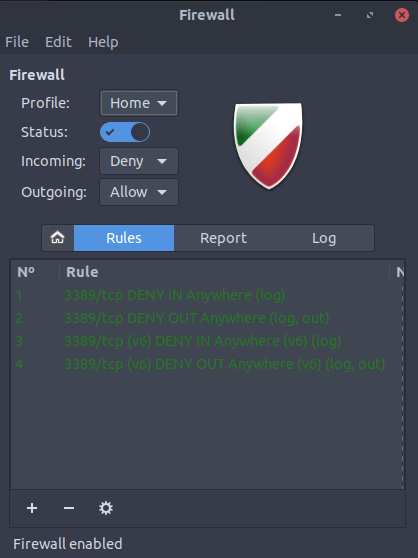
I tend to use Firewall Configuration, which gives a simple interface for configuring UFW. It allows you to choose simple defaults like “Home” or Office.”

Or you can enter rules individually

It can be downloaded from the Ubuntu Software Store.

The default utility for Fedora or Red Hat is Firewalld. It can be enabled via the command line by typing

systemctl start firewalld.service

systemctl enable firewalld.service

To show the status of the firewall, type

systemctl status firewalld.service

I was able to download Firewalld and run it on Ubuntu 20.04. It gave me the following GUI that is easy to configure:

As you can see, Firewalld uses zones, such as “home” an “Public” so you can choose the level of trust and then services such as Samba or SSH.

Sources:

  1. Negus, Cristopher. Linux Bible The Comprehensive Tutorial Reference. 2020 John Wiley and Sons, Inc.
  2. Clarke, Glen E. CompTIA Security+ Study Guide Third Edition. 2018 McGraw Hill Education.
  3. http://www.digitalocean.com
  4. http://www.huihoo.com
  5. http://www.tecmint.com

Network Monitoring Using Open-Source Tools

My Goal

In my home office, I decided to segregate my computers from the wireless network using an ethernet switch and a separate VLAN. This setup is pretty straightforward, as most managed switches have a web interface that allows easy configuration. I had a problem, though: I wanted to be able to monitor traffic flowing through the switch, and I wanted to do it for free. I also wanted the setup to be something easy to install and configure.

Port Mirroring

Although there is certainly more than one way to monitor a home network, I chose to use port mirroring. Port mirroring is a term used to describe the process of sending a copy of packets passing through one or more ports on the switch to another port on the same switch. This allows a computer attached to the mirror port to monitor and log traffic in and out of the VLAN.

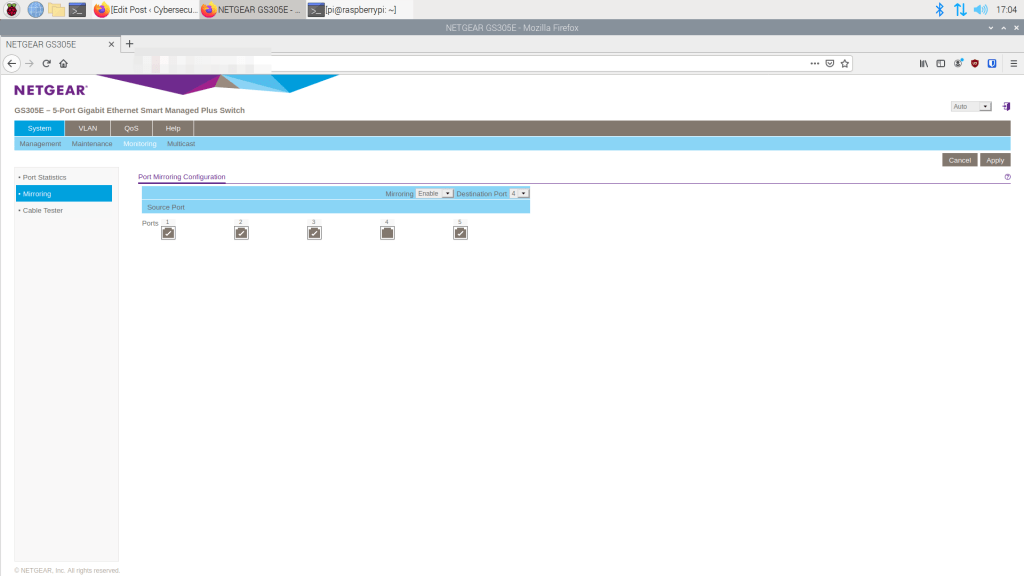
Setting up port mirroring on a switch is pretty simple on a home network. For a Netgear switch, login with the web management tool and select port mirroring. In this screenshot, port 4 is set up as the mirrored port:

Network Monitoring Tools

On the VLAN, I have both Linux and Windows computers. The system I have attached to the monitoring port is a Raspberry Pi 4 with 4GB RAM. Initially, I considered dedicating the system to only network monitoring by using software like Nagios Core. I also tried setting up Icinga2, another open-source network monitoring tool, on a laptop running Ubuntu 20.04. Both turned out to be time consuming to install and difficult to configure, so I set them aside for now. Instead, I decided to use easier to configure tools.

Wireshark

Wireshark is an open-source network protocol analyzer. Learning to use this tool is critical for anyone interested in security. It can be downloaded from https://www.wireshark.org. and works on Linux, Mac, and Windows. To use the tool you will need sudo or administrator privileges. On linux, just open the terminal and type

sudo wireshark

Here is a screenshot of a capture:

You can save the capture to a .pcap file for detailed analysis later.

HTOP And NTOP

The htop website, https://htop.dev, decribes htop as “a cross-platform interactive process viewer. ” It is launched from the Linux terminal. Install htop using the following commands:

sudo apt-get update

sudo apt-get install htop

To run htop, type

sudo htop

You get an output as follows:

Ntop is a little different. It is accessed via a web browser and has a GUI. Here is a link with intructions for installing ntop:

https://www.howtoforge.com/installing-and-configuring ntop

I found the process to be pretty easy compared to Icinga2 or Naggios. To access ntop via a browser, type http://localhost:3000. Be sure to change the default password. Ntop is a very functional traffic analysis tool:

TCPDUMP

Tcpdump is a packet analyzer for linux that is run from the command line. Like htop, it is installed from the command line with the commands

sudo apt-get update

sudo apt-get install tcpdump

According to Daniel Miessler, tcpdump can analyze traffic by “IP, port, protocol, or application.” He has a tutorial at https://danielmiessler.com/study/tcpdump/.

NMAP

Nmap is a network monitoring tool in that it is used for “network discovery and security auditing” (see https://nmap.org). For example, you can scan a device on your network to look for unintentionally open ports. Installing is simple, on the terminal, type

sudo apt-get update

sudo apt-get install nmap

To run, use the syntax

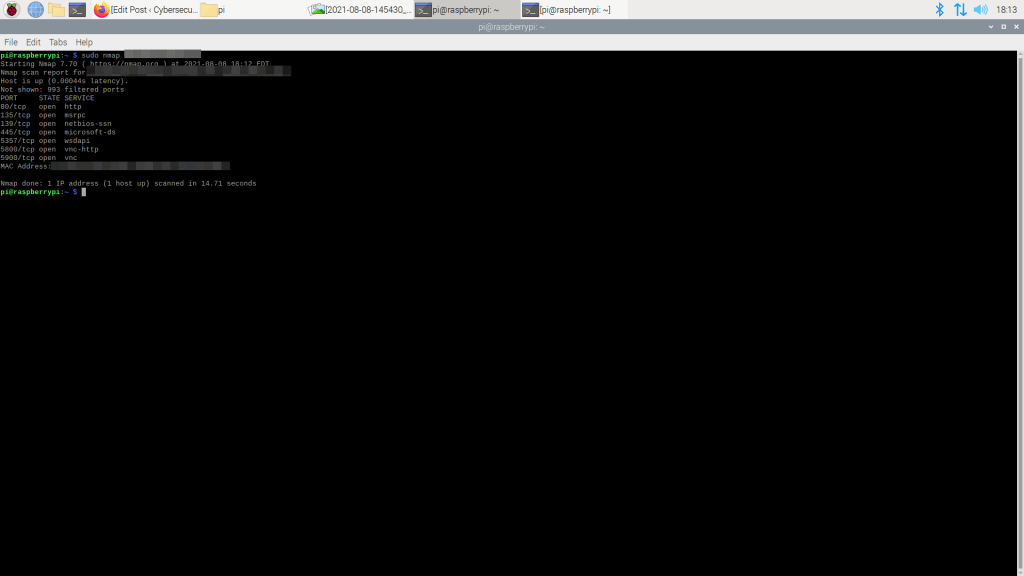
sudo nmap [IP Address]

You will get an output similar to this:

There is an excellent nmap cheat sheet with commands and switches at https://www.stationx.net/nmap-cheat/sheet.

Windows Network Monitoring

If you choose to use Windows for network monitoring, there is a tool called Microsoft Network Monitor. It can be downloaded from https://www.microsoft.com/en-us/download/details.aspx?id=4865. It is an archived tool, but it worked well for me on Windows 8.1 Pro. It gives you an output something like this:

Remember that Wireshark works great on Windows as well. Plus, you can also use sysinternals Process Monitor and Tcpview as well. Both are available for free at https://docs.microsoft.com/en-us/sysinternals/downloads/.

This post probably just scratches the surface of what can be done with these and other network monitoring tools. Check out the websites for the individual tools to learn as much as you can about their uses.

Cryptography Basics

What is Cryptography?

Wikipedia defines cryptography as “the practice and study of secure communication techniques.” In cyberspace, we are primarily concerned with encrypting data to make it incomprehensible to everyone except its intended recipients (confidentiality) (3). Encryption requires a cipher (algorithm) and a secret key, which is required to decrypt the encrypted data. 

The process can be diagrammed as such:

Decrypting is the opposite:

Cryptography in History

A very early example of cryptography is what is known as the Caesar Cipher, used by Julius Caesar to encrypt military and political secrets. The Caesar cipher took letters of the alphabet and shifted them a certain number of positions. The key to decrypt was the “size of the shift” (2). By modern standards, this was very simplistic, but it worked well enough at the time.  

Mary, Queen of Scots used a similar cipher in her plot against Elizabeth I.  Unfortunately for Mary, Elizabeth’s intelligence agents were able to crack the cipher, and Mary was captured and executed.  

Modern Cryptographic Methods

Modern cryptography is divided into two methodologies. The first is known as symmetric cryptography.  In symmetric cryptography, both the sending and receiving parties have the same key, which is used to encrypt and then decrypt the ciphertext. The biggest challenge with this method is how to send the key. If someone can intercept the key, they can decrypt the text. There has to be a pre-shared key, or the key has to be sent encrypted with the data. In-band key exchange is when the key is shared with the data. Out-of-band key exchange means another, separate communication method is used. 

Examples of symmetric encryption

  • Data Encryption Standard (DES) Used a 56-bit algorithm to encrypt data, Not considered secure by newer standards
  • Blowfish An algorithm with 1- to 448-bit encryption
  • Triple DES (3DES) Uses 168 bit encryption and improves upon DES
  • Advanced Encryption Standard (AES) Replaced 3DES, and uses 128-, 192-, or 256-bit encryption. AES is considered unbreakable

All of the above are considered block ciphers. In a block cipher, data is encrypted in a block of x size until all data is encrypted. Alternatively, a stream cipher encrypts data one bit at a time. Rivest Cipher 4 (RC4) is an example of a stream cipher. 

The other main cryptographic method is known as asymmetric encryption. In this methodology, two separate keys are generated: one public, one private. The sender encrypts the data with the receiver’s public key. The receiver has a private key, known only to them, used to decrypt the data. Examples include

  • Rivest Shamir Adleman (RSA)  Used for both signing and encryption. 
  • Diffie-Hellman   Actually a key-exchange protocol  
  • Elliptic Curve  Used for signing messages, based on Diffie-Hellman

Ensuring the Integrity of Data

When we send data, is there a way to ensure the data hasn’t been tampered with in some way?  There is, and it is done by hashing.  A hash is a one-way transformation that is generated when a hash algorithm is applied to a piece of data.  It works because no two chunks of data generate the same hash value. If one byte of data is changed, ideally a completely different hash is generated. A common use of hashing would be using MD5 or SHA-1 to verify the integrity of a downloaded program. More secure versions of SHA, SHA-256 and SHA-512 are much less susceptible to attacks (1).  

Public Key Infrastructure

Public Key Infrastructure (PKI) is a term used to describe the infrastructure in which public and private keys are managed. PKI is based on the use of certificates. Glen E. Clarke describes a certificate as “an electronic file that is used to store the public key (and sometimes the private key) and associates the public key with an entity such as a person or company” (1). 

There are many types of certificates, but the most well-known are the certificates stored on web servers that tell your browser you have accessed a legitimate site.  If you want to see the certificates stored on Firefox, go to Settings–>Privacy and Security–>Certificates–>View Certificates. 

The idea of certificates begs the question: who issues the certificate? You could make your own self-signed certificate which is fine for a network that never accesses the internet, but for a web server, you need a certificate issued by a Certificate Authority (CA). The first certificate is signed and issued by the Root CA. Intermediate CA’s issue certificates to users. 

Another example of a methodology that uses PKI is Pretty Good Privacy (PGP) and Gnu Privacy Guard (GPG). PGP and GPG are used, among other things, to encrypt emails. Like other forms of asymmetric cryptography, PGP and GPG require the generation of a public and private key pair. Thunderbird by Mozilla is an email client that has the ability to generate key pairs for PGP. 

Other Uses of Cryptography

From a security standpoint, there are two other very important uses of cryptography:

  • SSL/TLS  Secure Sockets Layer, and it’s successor Transport Layer Security, is used to encrypt web traffic. When you use HTTPS instead of HTTP, you are using SSL/TLS
  • WEP, WPA, and WPA2  Used to secure the connection to your router. When available, always use WPA2. WEP is trivial to hack, and WPA2 has an advantage over WPA in that is uses AES encryption

Conclusion

This has been a very high-level introduction to cryptography, aimed primarily at the novice. An in-depth cryptography text makes for some very difficult reading, to say the least. Hopefully, though, this post can give you a place to start in your study of cryptography.

Sources and Additional Reading

  1. Clarke, Glen E. CompTIA Security+ Certification Study Guide 3rd Edition. 2018, MCGraw-Hill.
  2. Martin, Keith. Cryptography, The Key to Digital Security, How It Works, And Why It Matters. 2020, Norton.
  3. Aumasson, Jean-Philippe. Serious Cryptography A practical Introduction to Modern Encryption. 2018, No Starch Press.
  4. CompTIA Security+ Certification (SY0-501): The Total Course. Mike Meyers Total Seminars.

Setting Up A Virtual Machine in VirtualBox

Virtualization Basics

If you do a google search for setting up a virtual machine on Virtualbox (or any other hypervisor), you’ll find that the subject has been covered many times. So, why cover it again? The answer is simple: if you are trying to learn cybersecurity, virtualization is probably the most basic and useful tool available to you.

Virtualbox allows you to run multiple versions of Windows and Linux ditros on your host computer, saving you from having to invest in the large amounts of hardware and software you would otherwise need. As for the host computer (the computer on which you install Virtualbox), a good bit of RAM and a large HDD or SSD is ideal. For this post, I’m using my laptop running Ubuntu linux 20.04. I have 16 gigabytes RAM and a 1T hard drive, which is adequate.

Installing Virtualbox

Virtualbox can be downloaded from https://www.virtualbox.org. Be sure to also scroll down and download the extension pack. For Ubuntu, you can install VirtualBox from the Ubuntu Software store, or by using the following commands:

sudo apt-get update

sudo apt-get install virtualbox

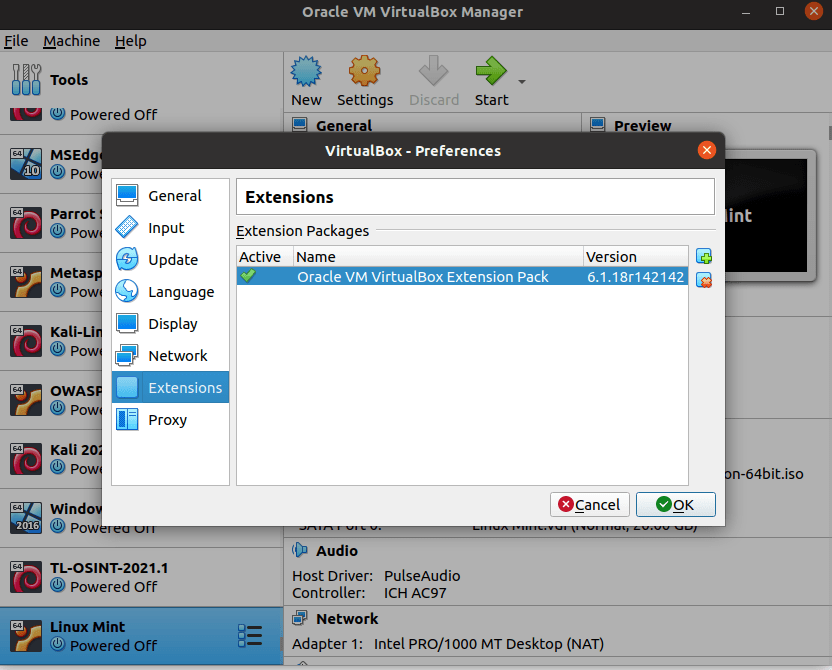
I recommend you install Virtualbox from the Virtualbox website, though. I have had issues with a version I got from the repository. After downloading, verify your installation and install Virtualbox. The extension pack should install automatically after download. You can verify that the extension pack is installed by going to Preferences-extensions:

Installing a Virtual Machine

To install your first virtual machine, go to the website for the operating system you want to install. Find the most recent .iso image and download it. In this example, I’m going to use Linux Mint, a popular linux distro.

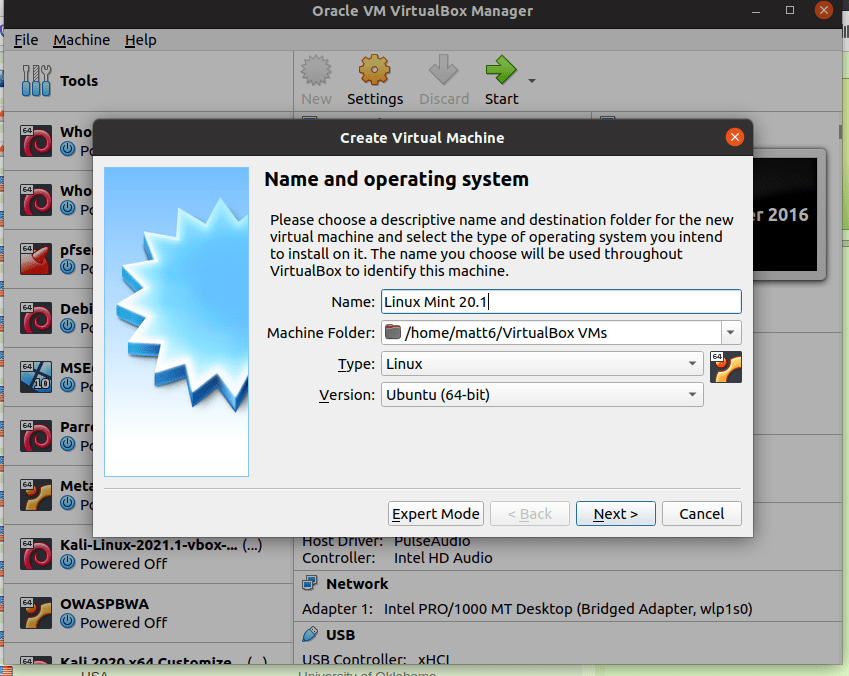
In virtual box click “New.” Then enter the name of the OS (Linux Mint 20.1 in this case) and choose “Linux” and “Ubuntu (64-bit), then click next.

In the next screen, you have the option to choose how much memory to allocate to your virtual machine (VM). Some VMs work better with more memory, but, since a VM uses host system resources, you have to take into account what your system has available. Although this particular laptop has 16G RAM installed, I will go with the default.

The next step is to choose a hard disk. Choose “Create a virtual hard disk now” and click “create.”

In the next screen, select “VDI (VirtualBox Disk Image)” and click “Next.”

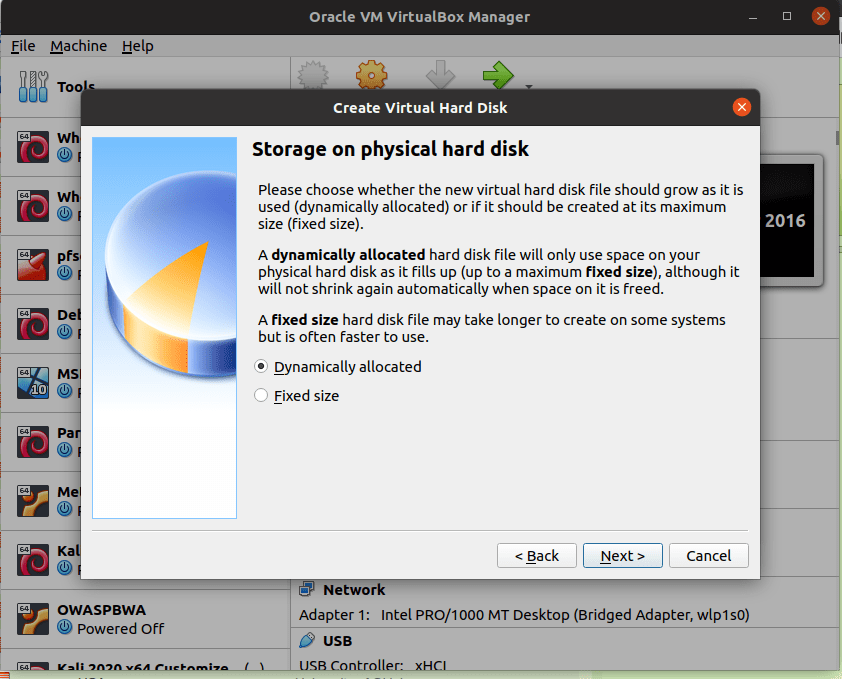
In the next screen, choose “Dynamically Allocated,” which allows the hard disk file to grow as it is used.

Next, you can choose the size of the virtual hard disk. My laptop has 1T of hard drive space, but, once again, I’ll stick to the default here. Some VMs require increasing this, so a little research might be in order before install.

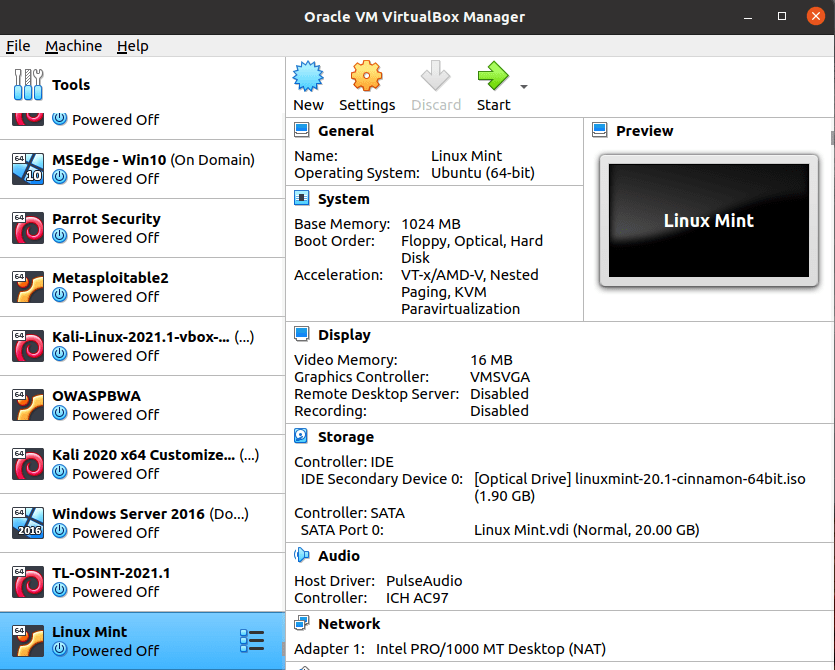
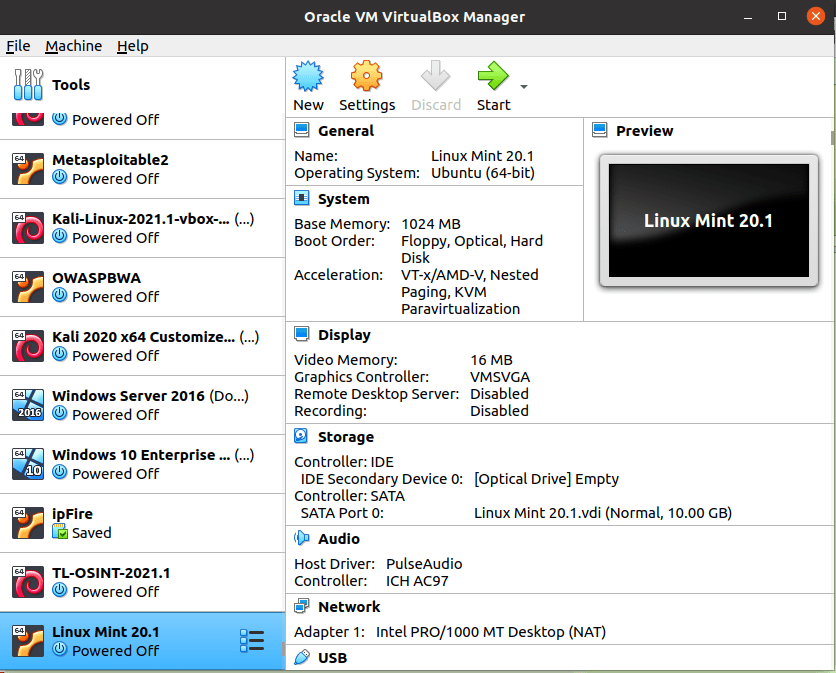
Click create, and you will be taken to the VirtualBox Manager.

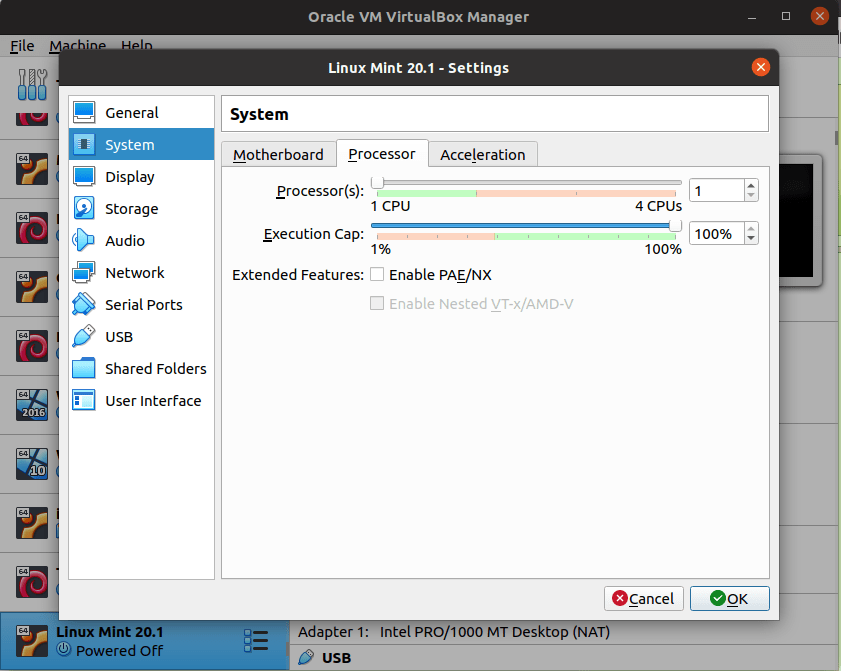
With Linux Mint highlighted, click “settings.” Here, I will usually choose the maximum number of available CPUs:

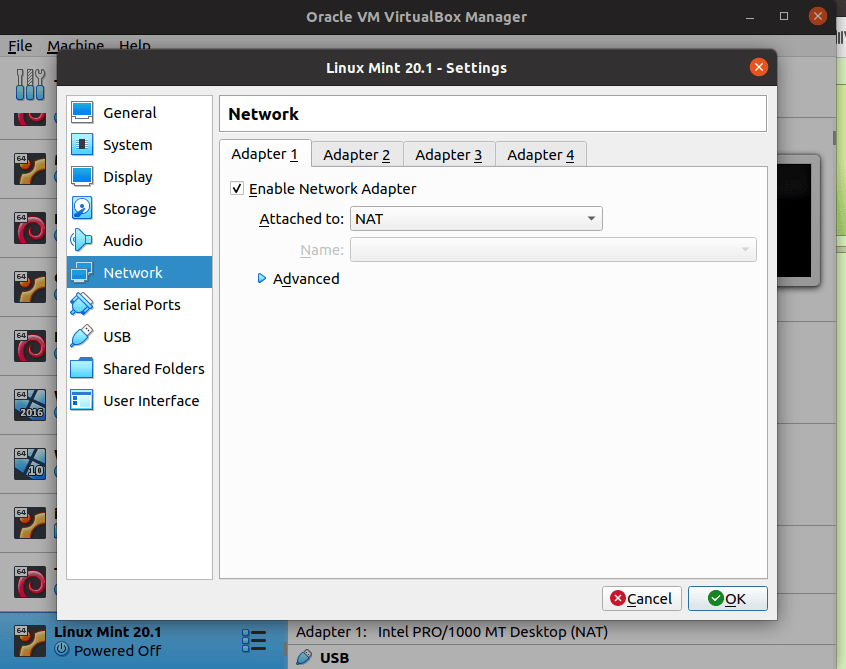
and choose a network type. Here I will choose NAT:

For a good description of each type of network, see https://www.virtualbox.org/manual/ch06.html.

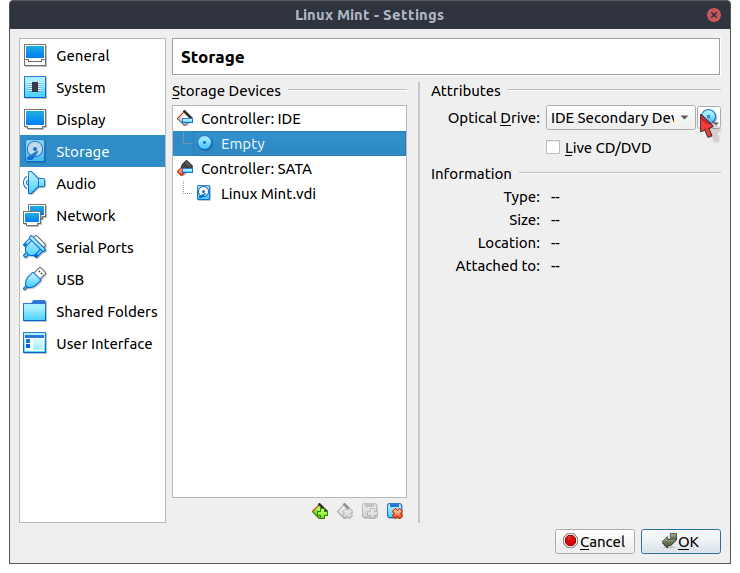
Next, click on “Storage” and then the “Empty” controller:

Click on the optical drive symbol as shown:

Click on “Choose/Create Optical Disk” and browse to the location where your .iso image is saved. Chooose it, then click okay. At the VirtualBox manager, click on Linux Mint to highlight it and then click start.

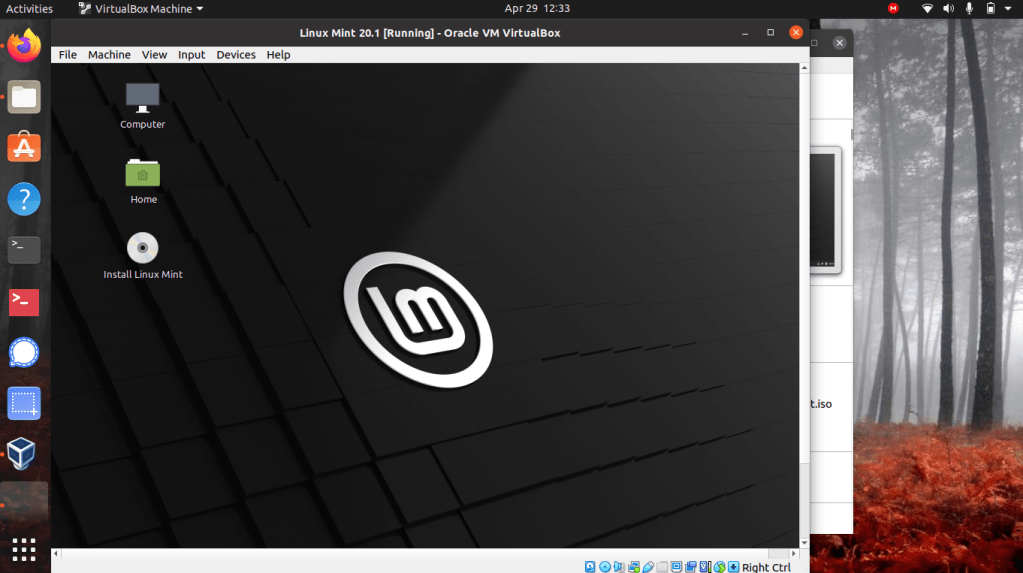
The Linux Mint VM will start and you will have the option to test a live version or install Mint.

Once you have gone through the install screens, be sure to remove the .iso image from the optical drive before the VM reboots or VirtualBox will reinstall the VM instead of running it. Click on “Devices,” “Optical Drives” and and then choose “Remove disk from virtual drive.”

At this point, the VM should be ready to use. For a linux disto, I usually start the VM, take a snapshot, and label it “Clean Install.” This allows me to revert to a clean version if I destroy the OS trying something new!