
Overview Of Firewalls
A firewall is a protective control that prevents systems on one side of the firewall from reaching a network or host on the other side. Host firewalls are application based as opposed to network based (firewalls can also be hardware or software based). Most of the time, you will think of firewalls as blocking packets from entering your system from the outside, although a firewall can also:
- Block packets from leaving
- Forward packets
- Port forward
- Change packets (mangling)
- Allow access of multiple network devices to the internet
Firewalls can be classified as follows:
- Packet Filtering. Filters traffic based on source or destination IP address/ port number as well as by protocol (OSI layers 3 and 4)
- Stateful Packet Inspection. Can do what a simple packet filtering firewall does, but can also filter traffic based on context. So, a packet is accepted or rejected based on whether is meets the criteria for the current conversation.
- Application Layer. Operates at OSI layer 7 to prevent application access into or out of the system.
Remember, a firewall uses RULES to decide what gets through and what doesn’t get through.
Netfilter/IPTables
In a linux distribution, IPTables is the utility that is used to configure packet-filtering rules at the kernel level. Netfilter is the actual firewall that IPTables manages. IPTables gets its name from the tables that determine firewall functions. There are four basic tables:
- Filter for the filtering feature.
- NAT for Network Address Translation
- Mangle for modifying packets
- Raw
Raw is a little harder to understand. Huihoo.com describes the raw table as follows:
The raw table is mainly only used for one thing, and that is to set a mark on packets that they should not be handled by the connection tracking system. This is done by using the NOTRACK target on the packet. If a connection is hit with the NOTRACK target, then conntrack will simply not track the connection. This has been impossible to solve without adding a new table, since none of the other tables are called until after conntrack has actually been run on the packets, and been added to the conntrack tables, or matched against an already available connection.
Each table has a group of categories for packets called chains. For example, the filter table has the following chains available:
- Input
- Output
- Forward
Input and output are straightforward. Forward allows a packet to be forwarded from one system to another across a network interface. Rules are applied to the packets based on the chains they are categorized into.
Configuring IPTables
IPTables is configured using the terminal. To list the current tables, type
iptables -L
The figures shows the output of the command:

(This was actually set with UFW on Ubuntu Linux.) The policy is to drop all forwarded and incoming packets and accept outgoing traffic only- the default for the “Home” setting (more on UFW later). If I wanted to set the INPUT chain using the terminal, I would type
iptables -P INPUT DROP
You can get very granular control with IPTables. Say that you wanted to block all the traffic from a specific IP address. You could use the -A chain command as follows:
iptables -A INPUT -s 10.10.1.5 -j DROP
-A is a rule that is an exception to the overall policy, and -s is for the source IP address. I could delete this rule as follows:
iptables -D INPUT -s 10.10.1.5 -j DROP
You could also block connections from a specific port and protocol:
iptables -A INPUT -p tcp --dport ssh -s 10.10.1.5 -j DROP
These examples are literally just a drop in the bucket. A good overview of iptables commands can be found at https://www.digitalocean.com/community/tutorials/iptables-essentials-common-firewall-rules-and-commands
Options For Configuring Firewall Rules
Besides configuring IPTables directly from the command line, there are other options that can simplify the process. UFW is the default firewall utility on Ubuntu. You can check the status of UFW by typing
sudo ufw status
and enable it by typing
sudo ufw enable
sudo man ufw will give give you the man page:

I tend to use Firewall Configuration, which gives a simple interface for configuring UFW. It allows you to choose simple defaults like “Home” or Office.”
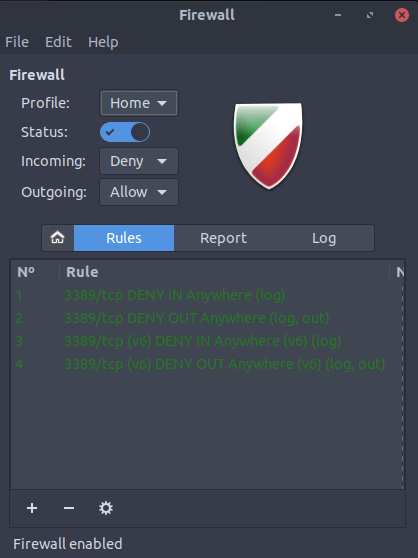
Or you can enter rules individually

It can be downloaded from the Ubuntu Software Store.
The default utility for Fedora or Red Hat is Firewalld. It can be enabled via the command line by typing
systemctl start firewalld.service
systemctl enable firewalld.service
To show the status of the firewall, type
systemctl status firewalld.service
I was able to download Firewalld and run it on Ubuntu 20.04. It gave me the following GUI that is easy to configure:

As you can see, Firewalld uses zones, such as “home” an “Public” so you can choose the level of trust and then services such as Samba or SSH.
Sources:
- Negus, Cristopher. Linux Bible The Comprehensive Tutorial Reference. 2020 John Wiley and Sons, Inc.
- Clarke, Glen E. CompTIA Security+ Study Guide Third Edition. 2018 McGraw Hill Education.
- http://www.digitalocean.com
- http://www.huihoo.com
- http://www.tecmint.com
 Cybersecurity Journey